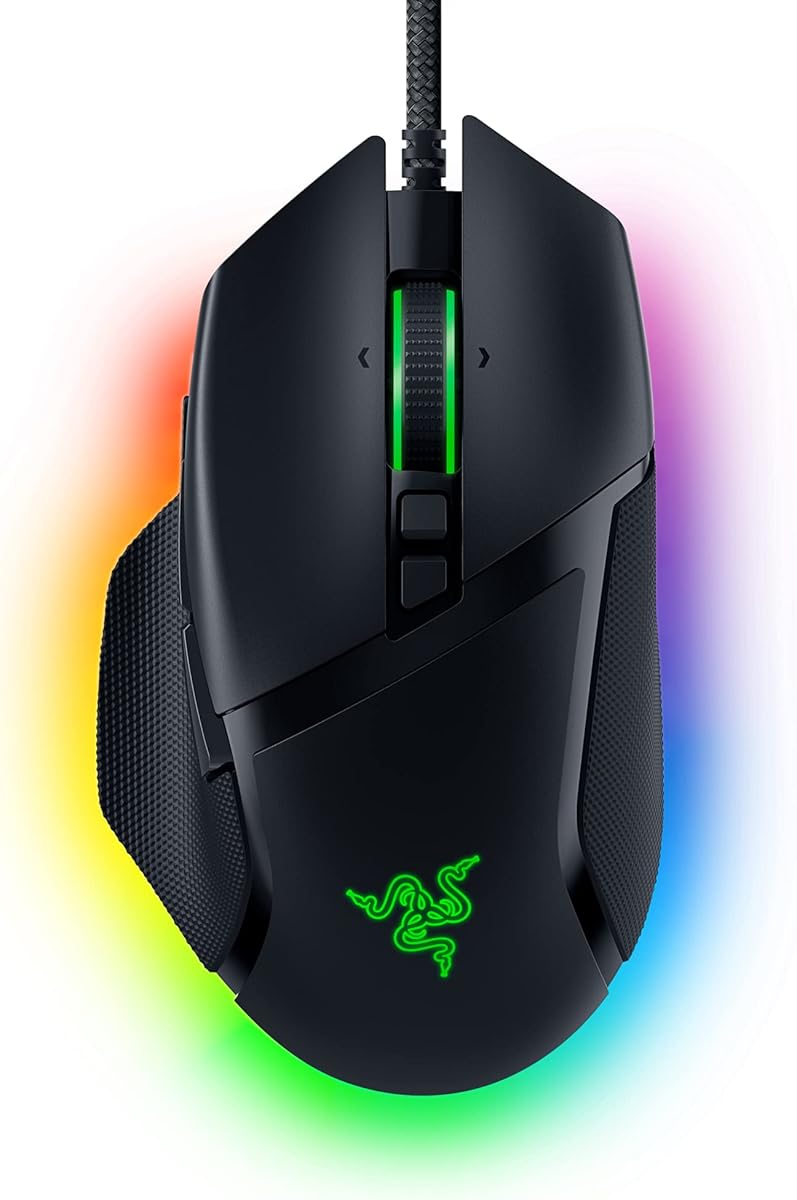
Razer Basilisk V3 Customizable RGB Wired Ergonomic Gaming Mouse, Black
4.6Editor score
11 programmable buttons
HyperScroll tilt wheel
26K DPI optical sensor
This guide compares the top mice for Solidworks, evaluating ergonomics, precision, and customization to help professionals choose the perfect tool for CAD
Finding the right mouse for Solidworks is essential for engineers and designers who spend hours navigating complex 3D models. A capable device reduces strain and improves accuracy during critical design tasks.
We analyzed ten top-rated mice based on ergonomic design, tracking precision, and programmable features. Our selection includes wireless options, gaming mice, and specialized 3D controllers suited for CAD users.
Each pick highlights key strengths and potential drawbacks to guide your decision. Remember that stock levels and pricing fluctuate daily, so check current availability before making your final purchase choice.
4.6Editor score

4.3Editor score
4.4Editor score
This side-by-side comparison highlights the key specifications and features of each mouse to help you identify the model that best fits your Solidworks workflow requirements.


The Logitech MX Master 4 stands out as a premier tool for CAD professionals seeking precision and comfort. It combines advanced haptics with ergonomic shaping to minimize hand fatigue during long Solidworks sessions.
We may earn a commission when you buy through this link, at no additional cost to you.
Its MagSpeed scroll wheel allows rapid document navigation while maintaining pixel-level control for detailed modeling tasks. The Actions Ring and Haptic Sense Panel provide intuitive access to frequently used tools without breaking focus.
While the device offers many features, its large footprint may not suit users with smaller hands. The premium pricing reflects its build quality and advanced sensor capabilities.
This mouse is ideal for designers who prioritize workflow efficiency and ergonomic support. Investing in the MX Master 4 ensures a smooth and responsive experience for demanding 3D modeling work.
The Haptic Sense Panel delivers tactile feedback for actions, shortcuts, and notifications, allowing users to confirm commands without looking away from their screen.
The Actions Ring adapts to each application, placing essential filters and adjustments near your cursor to streamline complex Solidworks command sequences.
We may earn a commission when you buy through this link, at no additional cost to you.
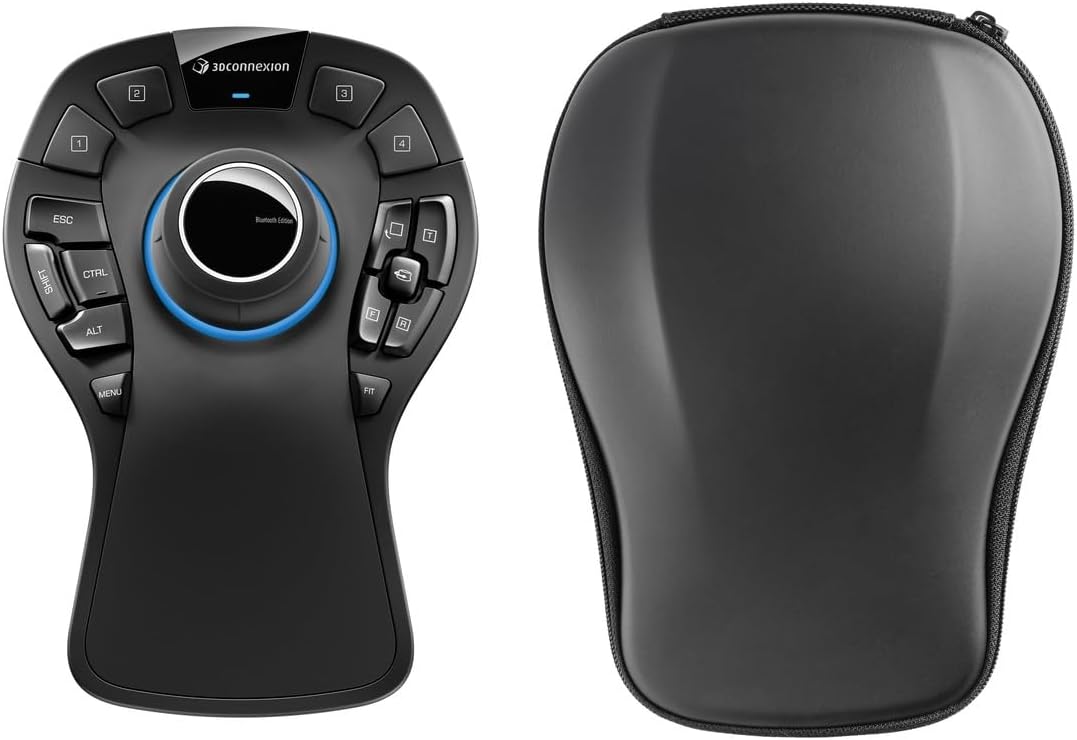
The 3Dconnexion SpaceMouse Pro Wireless is designed specifically for navigating complex 3D models in Solidworks. It offers six degrees of freedom to rotate, pan, and zoom simultaneously with simple hand movements.
We may earn a commission when you buy through this link, at no additional cost to you.
This dedicated device complements traditional mice by handling spatial manipulation tasks, which significantly speeds up the design process. The wireless design ensures a cluttered desk free from cables.
Users must install specific drivers to enable full functionality with Solidworks software. Additionally, it is meant to be used alongside a standard mouse for selection and command inputs.
For professionals working extensively in 3D environments, this tool provides unmatched efficiency. Its ability to intuitively control camera views makes it an invaluable asset for detailed engineering projects.
With a Six-Degrees-of-Freedom sensor, users can manipulate models in all directions effortlessly, improving fluidity during complex assembly and modeling work.
Bluetooth Low Energy and USB-C connectivity options ensure reliable performance while keeping your workspace tidy and reducing cable management issues.
We may earn a commission when you buy through this link, at no additional cost to you.
This Graphite variant of the MX Master 4 brings the same high-performance features as its counterpart. It is engineered to support natural hand positions and minimize strain during prolonged computer usage.
We may earn a commission when you buy through this link, at no additional cost to you.
The MagSpeed scroll wheel and Actions Ring offer versatile navigation options suited for CAD workflows. Users can customize button functions to match their specific Solidworks shortcuts and preferences.
The reliance on battery power means periodic charging is necessary, though the battery life is robust. The price remains a significant factor for those seeking budget-friendly options.
If you value comfort and speed in equal measure, this mouse delivers. It is particularly beneficial for designers who spend many hours a day interacting with detailed 3D interfaces.
The MagSpeed scroll wheel allows for ultra-fast scrolling or pixel-perfect precision, adapting quickly to different tasks within Solidworks.
With USB-C dongle or Bluetooth connectivity, the mouse ensures a stable link to your computer, reducing interruptions during critical design phases.
We may earn a commission when you buy through this link, at no additional cost to you.
Designed specifically for Apple users, this version of the MX Master 4 seamlessly integrates with macOS systems. It features matching finishes and optimized Logi Options+ functionality for Mac workflows.
We may earn a commission when you buy through this link, at no additional cost to you.
The ergonomic design supports long hours of Solidworks use, while the MagSpeed scroll wheel provides the precision needed for intricate modeling. Quiet clicks ensure a distraction-free environment.
The cost is slightly higher compared to other versions, reflecting its tailored software support. Some users might find the size unwieldy if they prefer compact devices.
Mac users working in Solidworks will appreciate the native optimization and aesthetic consistency. This mouse delivers the performance and comfort required for professional engineering tasks on Apple hardware.
Logi Options+ functions are tailored for macOS, allowing precise customization of gestures and buttons to enhance productivity within Solidworks.
The ergonomic silhouette keeps your wrist in a natural posture, while the haptic feedback provides intuitive tactile confirmation for critical actions.
We may earn a commission when you buy through this link, at no additional cost to you.
The Razer Basilisk V3 is an excellent budget-friendly option for Solidworks users who need extensive button customization. It features 11 programmable buttons that can map to essential commands efficiently.
We may earn a commission when you buy through this link, at no additional cost to you.
The HyperScroll Tilt Wheel offers both free-spin and tactile modes, providing versatility for navigating large technical drawings. Its ergonomic design supports the hand comfortably during extended work sessions.
Being a wired device eliminates battery concerns but may restrict desk movement. The RGB lighting can be turned off if visual distractions are a concern in a professional setting.
For those seeking high performance without the premium price tag, this mouse is a strong contender. It balances cost and functionality effectively for demanding CAD workflows.
With 11 programmable buttons, users can assign macros to frequently used tools, streamlining repetitive tasks and increasing overall productivity.
The Focus Plus 26K DPI sensor ensures accurate movement tracking, which is crucial for precision design work in Solidworks.
We may earn a commission when you buy through this link, at no additional cost to you.
The Lenovo Yoga Pro Mouse offers a balanced approach with its ergonomic design and reliable wireless connectivity. Its rechargeable battery ensures minimal downtime during critical design periods.
We may earn a commission when you buy through this link, at no additional cost to you.
Users can adjust DPI on-the-fly to suit different precision needs within Solidworks. The programmable buttons add flexibility, allowing quick access to essential commands without navigating menus.
While the sensor is adequate for most tasks, it may not match high-end gaming mice in extreme precision scenarios. The battery life is excellent, but charging requires access to a USB-C cable.
This mouse is ideal for professionals needing a dependable and versatile wireless solution. It provides a solid combination of comfort, features, and battery efficiency for everyday engineering use.
Dual-mode Bluetooth allows seamless transitions between devices, making it easy to switch between workstations without interrupting your workflow.
The ergonomic design reduces hand strain, while the adjustable DPI settings ensure you have the control needed for detailed Solidworks modeling tasks.
We may earn a commission when you buy through this link, at no additional cost to you.
The MX Master 3S Bluetooth Edition is a reliable choice for users who prefer a clean wireless setup without a USB receiver. It maintains the high-quality build and features that have made the series popular.
We may earn a commission when you buy through this link, at no additional cost to you.
Its 8K DPI sensor ensures precise tracking on almost any surface, including glass. The quiet click mechanism reduces noise, which is beneficial in shared workspaces during focused design sessions.
Without a dongle, connectivity depends solely on Bluetooth, which some users may find less stable than a dedicated receiver. The price remains high, reflecting its premium features and build quality.
For professionals seeking a proven wireless mouse with excellent ergonomics, this model delivers. It continues to be a strong option for Solidworks users prioritizing reliability and precision.
Quiet clicks offer a satisfying feel with significantly reduced noise, ensuring a focused environment without compromising tactile feedback.
The MagSpeed scroll wheel provides rapid scrolling or precise stopping, allowing quick navigation through large Solidworks models and detailed drawings.
We may earn a commission when you buy through this link, at no additional cost to you.
The Razer Naga V3 Pro stands out with its swappable side plates, allowing users to customize button layouts for different tasks. This flexibility is valuable for Solidworks users managing various workflows.
We may earn a commission when you buy through this link, at no additional cost to you.
Its wireless performance delivers low latency, ensuring responsive control during complex operations. The HyperScroll Tilt Wheel Gen-2 provides dual tactile modes, enhancing precision for technical drawing and model navigation.
The battery life is robust, supporting days of continuous use. However, the device may be overkill for users who do not require extensive button customization or gaming-grade sensors.
For those needing maximum flexibility and wireless freedom, this mouse excels. It combines durability with advanced features that can streamline intricate CAD design processes effectively.
Three swappable side plates offer different button configurations, enabling users to adapt the mouse layout for specific Solidworks tasks or project types.
With up to 155 hours on HyperSpeed Wireless, the battery life ensures uninterrupted work sessions, reducing the need for frequent recharges.
We may earn a commission when you buy through this link, at no additional cost to you.
The Logitech G PRO X2 SUPERSTRIKE brings advanced haptic feedback and a top-tier sensor to professional workflows. Its lightweight design reduces hand strain during extensive modeling sessions.
We may earn a commission when you buy through this link, at no additional cost to you.
The HERO 2 sensor delivers unmatched accuracy, crucial for precise design elements in Solidworks. Battery life is strong, allowing for long workdays without frequent charging interruptions.
The high price reflects its premium features, which may not be necessary for all users. Additionally, its gaming-centric look might not suit all office environments.
For professionals who prioritize performance and lightweight comfort, this mouse is an excellent choice. Its features ensure accurate and efficient control for demanding technical tasks.
The Haptic Inductive Trigger System provides real-time feedback, enhancing control precision during critical design manipulations and interactions.
With the HERO 2 sensor, tracking accuracy reaches industry-leading levels, ensuring that every movement translates precisely to your Solidworks interface.
We may earn a commission when you buy through this link, at no additional cost to you.
The Razer Basilisk V3 X offers wireless freedom at a competitive price point. Its ergonomic shape supports comfortable use for extended periods, making it suitable for engineering workflows.
We may earn a commission when you buy through this link, at no additional cost to you.
With a 285-hour battery life, users can work uninterrupted for weeks. The 18K DPI sensor provides reliable tracking for most Solidworks tasks, ensuring responsive control.
The mechanical switches offer crisp feedback and durability, but the sensor may not match high-end options for extreme precision. The design may appeal more to gaming enthusiasts.
For budget-conscious users needing wireless convenience, this mouse is a solid option. It balances essential features with cost-effectiveness to support productive CAD design sessions.
The impressive battery life minimizes charging frequency, allowing users to maintain consistent productivity without worrying about power levels.
Customizable controls and responsive mechanical switches ensure that commands are executed quickly and accurately within Solidworks environments.
We may earn a commission when you buy through this link, at no additional cost to you.
Selecting the right mouse involves considering ergonomics, precision, and customizable features tailored to your workflow.
For professionals spending hours on CAD modeling, ergonomic design is crucial to prevent repetitive strain injuries. Look for a mouse that supports a natural wrist posture, includes thumb rests, and offers adjustable contours to fit your hand size comfortably.
Prioritize mice with shapes that distribute pressure evenly across the palm and fingers to minimize fatigue during long sessions.
Solidworks requires precise cursor control for modeling and detailing. Choose a mouse with a high DPI sensor that offers smooth tracking on various surfaces, including glass, without jitter.
A sensor with customizable DPI settings allows you to switch between high speed for navigation and high precision for intricate design tasks.
Customizable buttons streamline workflows by mapping frequently used commands to easy-to-reach controls. This reduces reliance on keyboard shortcuts and accelerates repetitive tasks within Solidworks.
Ensure the software supporting these buttons is intuitive and allows application-specific profiles for seamless integration.
A high-performance scroll wheel with multiple modes such as free-spin or tactile ratchet helps navigate large assemblies and technical drawings efficiently.
Look for tilt functionality that adds extra dimensions of control, enhancing your ability to interact with complex 3D models.
Wireless mice offer flexibility, but ensure the connection is stable and latency-free. Opt for devices with rechargeable batteries or long battery life to minimize interruptions.
Consider USB-C charging for convenience and the option to use both Bluetooth and a dongle for versatile connectivity options.
The mouse software must support Solidworks and your operating system to enable full customization. Check that macros and profiles can be saved locally or synced for multi-device use.
Robust software ensures that all advanced features are accessible and easy to configure for your specific engineering workflows.
Professional tools must withstand daily use. Look for mice with durable switches and high-quality materials that resist wear and maintain performance over time.
A robust build ensures longevity, making the investment worthwhile for long-term professional use in demanding environments.
Some mice offer unique features like haptic feedback or dedicated 3D controllers for enhanced spatial manipulation. Assess if these add value to your specific workflow.
While advanced features can boost productivity, ensure they integrate well with your existing hardware and software ecosystem.
Begin by installing the manufacturer software and connecting the mouse via Bluetooth or USB dongle. Configure your preferred DPI settings and customize button mappings to align with common Solidworks commands.
Clean the mouse regularly with a soft, dry cloth to remove dust and debris that can affect tracking. Check for firmware updates through the software to ensure optimal performance and compatibility.
Store your mouse in a protective case when traveling to prevent damage. Avoid placing heavy objects on top and ensure that wireless models are charged before extended use sessions.
Yes, many gaming mice offer high precision, ergonomic design, and programmable buttons ideal for CAD work. Look for models with strong software support and adjustable DPI settings tailored to your needs.
A good Solidworks mouse features precise tracking, ergonomic design to prevent strain, and customizable buttons for efficient command access. Additional features like tilt scroll wheels enhance navigation through complex models.
Modern wireless mice are highly reliable with low-latency connections and stable performance. Ensure you choose a reputable brand and keep firmware updated to avoid connectivity issues during critical tasks.
DPI affects cursor sensitivity and precision. Higher DPI allows for smoother movements, but adjustable settings are best for balancing speed and accuracy when working on detailed engineering drawings and 3D models.
While a standard mouse works, specialized 3D controllers can enhance navigation and manipulation in Solidworks. However, most users find a high-quality ergonomic mouse with customizable features sufficient for daily tasks.
Use the mouse software to assign macros and command shortcuts to programmable buttons. Most software allows saving profiles specific to Solidworks, ensuring quick access to essential commands during design work.
The top picks for Solidworks mice combine ergonomic comfort, precision tracking, and customizable features to enhance CAD workflows. Models like the Logitech MX Master 4 and 3Dconnexion SpaceMouse Pro stand out for their specialized capabilities.
Prioritize ergonomic design and programmable buttons to maximize productivity and reduce hand strain during long design sessions. Consider connectivity options and battery life that fit your daily usage patterns.
Always verify current availability and pricing before purchasing since stock levels change frequently. Investing in the right mouse can significantly improve efficiency and comfort for your engineering projects.