
Selore USB C Docking Station Dual Monitor
4.4Editor score
Dual 4K 60Hz HDMI ports
100W Power Delivery charging
Eight-in-one hub functionality
This comprehensive guide compares the top ten dual HDMI monitor adapters for productivity and multi-screen workflows across Windows and macOS platforms.
Finding the right dual HDMI monitor adapter can transform your workspace by enabling seamless multi-screen setups. Whether you need extended displays for multitasking or mirrored screens for presentations, the right adapter ensures stable video output without compromising performance or compatibility with your existing hardware.
We evaluated ten leading models based on resolution support, connection types, and operating system compatibility. Our analysis covers USB A, USB C, and DisplayPort solutions, ensuring you find a device that matches your specific laptop or desktop configuration for reliable dual monitor connectivity.
Each pick highlights distinct strengths like 4K support, power delivery, or broad OS compatibility. While product prices vary, focus on features that align with your workflow needs. Keep in mind that current pricing may fluctuate, so check the latest offers before making your final purchase decision today.
4.4Editor score
4.5Editor score

4.2Editor score
This table compares all ten adapters side by side to help you quickly identify which model fits your specific connection requirements and display needs.


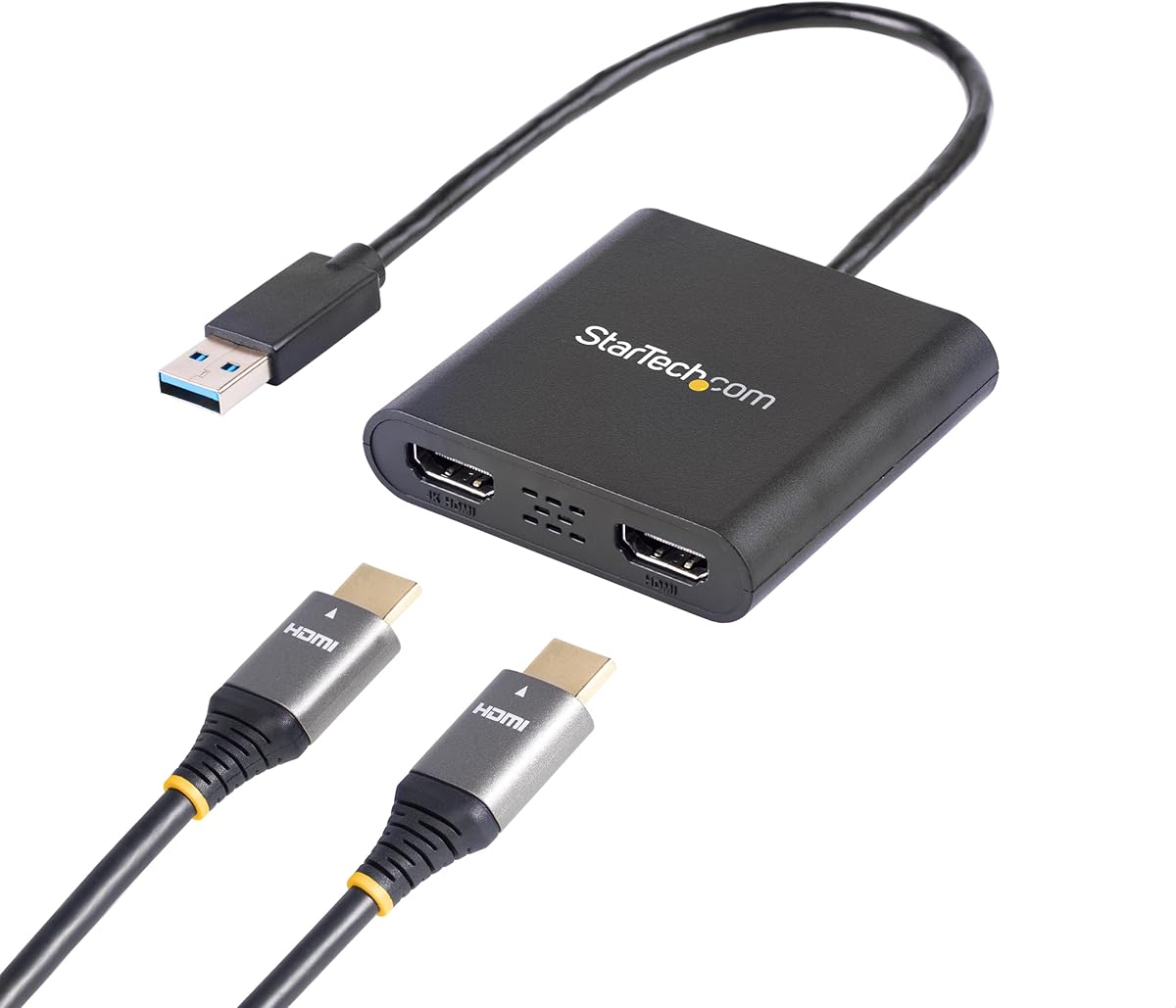
The StarTech adapter stands out as a highly rated solution for Windows-based workstations needing dual HDMI connectivity. With a 4.5 rating and strong professional backing, it delivers reliable performance for office environments and multitasking setups without unnecessary complexity.
We may earn a commission when you buy through this link, at no additional cost to you.
This USB 3.0 model supports 4K resolution at 30Hz on one port and 1080p at 60Hz on the other, ensuring smooth visuals for productivity tasks. Its design targets IT professionals with features like HDCP support and detailed technical documentation for seamless integration.
While the Windows-only limitation restricts use for Mac users, this focus allows for stable driver support and optimized performance. Administrator rights are needed for installation, which may require IT coordination in corporate settings but ensures secure deployment.
If you manage a Windows workstation and prioritize stability over cross-platform flexibility, this adapter offers long-term reliability. The three-year warranty and 24/5 support make it a safe investment for business environments requiring consistent dual monitor performance.
Built specifically for Windows platforms, this adapter avoids compatibility issues found in generic hubs.
Access free lifetime technical assistance and a three-year warranty for long-term peace of mind.
We may earn a commission when you buy through this link, at no additional cost to you.
The Selore USB C Docking Station offers an affordable way to add dual monitors and essential ports to modern laptops. With a solid 4.4 rating, it appeals to users seeking a complete docking solution without the high cost of premium brands.
We may earn a commission when you buy through this link, at no additional cost to you.
It provides dual 4K 60Hz HDMI outputs for crisp visuals, plus a 100W Power Delivery port to charge your laptop simultaneously. Additional USB 3.0 ports and an SD card reader make it a versatile hub for photographers and office workers alike.
Windows users can extend their desktop across both monitors easily, while Mac users are limited to mirroring. This distinction is important to consider if you rely on extended desktop workflows with Apple hardware.
For budget-conscious buyers needing robust connectivity, this docking station delivers exceptional value. Just ensure your laptop has a Thunderbolt or full-featured USB-C port to unlock the full video output capabilities effectively.
Get multiple USB ports and SD card slots alongside dual HDMI outputs in one compact device.
Keep your laptop charged while using multiple peripherals through the 100W PD pass-through.
We may earn a commission when you buy through this link, at no additional cost to you.
The Acer 4-in-1 USB C Hub combines premium build quality with powerful dual display capabilities for modern professionals. Its 4.2 rating reflects a balance of performance and design, making it a top choice for sleek workstation setups.
We may earn a commission when you buy through this link, at no additional cost to you.
Supporting dual 4K 60Hz outputs ensures crisp visuals for detailed work, while the 100W Power Delivery port keeps your laptop fully charged during intensive tasks. A USB 3.0 port allows quick file transfers without cluttering your workspace.
The compact design fits easily into laptop bags, but the short 20cm cable may limit placement flexibility. Additionally, macOS users face mirror-only constraints, which is a trade-off for the premium hardware and fast data transfer speeds.
If you value aesthetics and high-speed connectivity alongside dual screens, this hub delivers a premium experience. Verify your laptop supports DisplayPort Alternate Mode to ensure seamless dual monitor performance across your workflow.
Enjoy crisp dual 4K visuals at 60Hz for smooth productivity and creative workflows.
Transfer files quickly and charge your device simultaneously with robust USB 3.0 and PD features.
We may earn a commission when you buy through this link, at no additional cost to you.
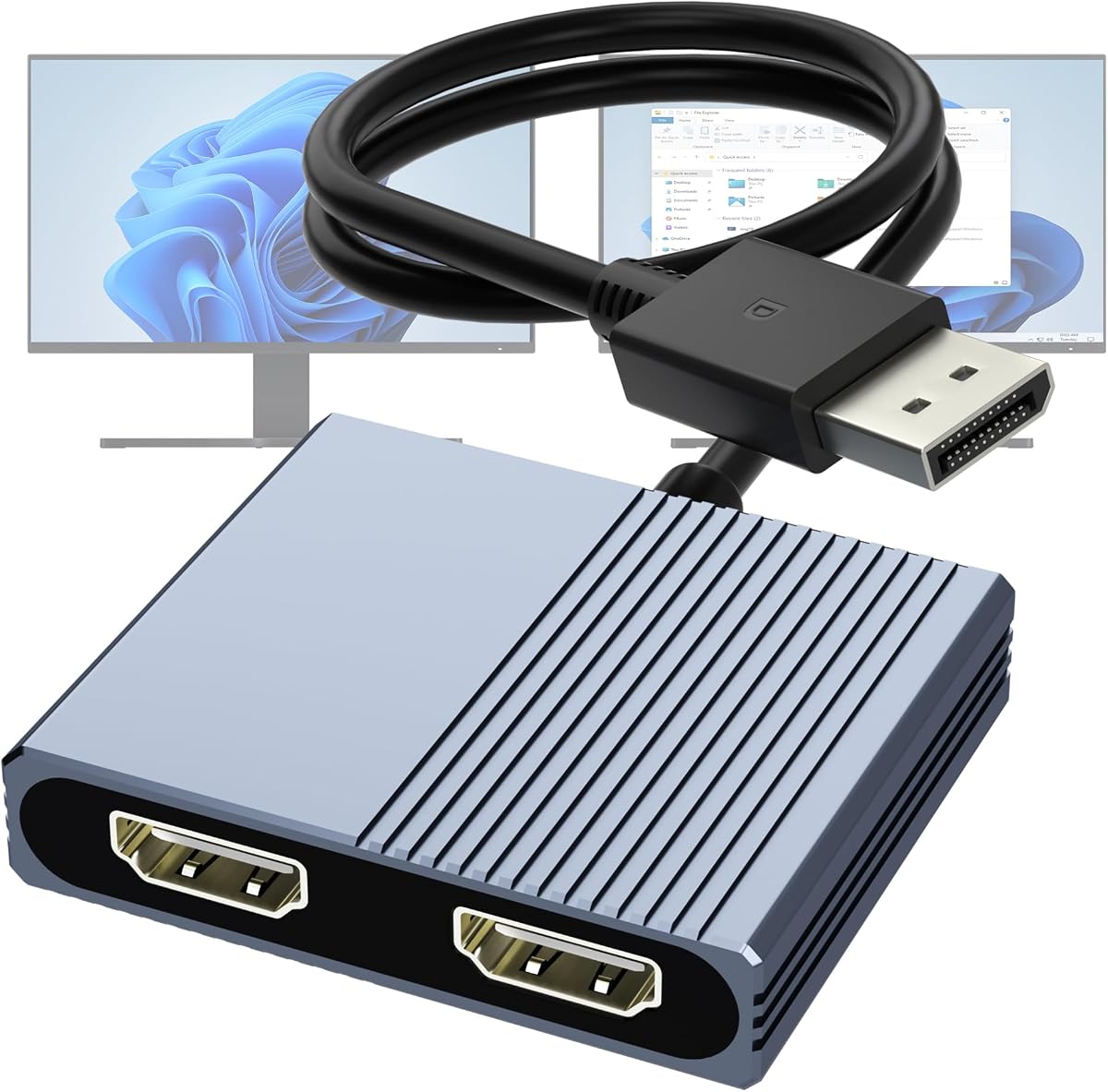
This DisplayPort adapter excels for desktop users with dedicated graphics cards needing dual HDMI displays. Its 4.1 rating highlights reliability for extended desktop setups, using MST technology to split one DP signal into two independent HDMI screens.
We may earn a commission when you buy through this link, at no additional cost to you.
With support for dual 4K 60Hz, it delivers high-quality visuals for gaming or design work when your card supports DP 1.4. The plug and play design means no driver installation is required, simplifying setup for non-technical users.
It requires a dedicated DP port rather than USB or docking stations, limiting its use to specific hardware configurations. Integrated graphics might not support extended modes, so checking your system specs is essential before purchase.
For PC builders and power users, this adapter offers a straightforward path to dual 4K displays without software complexity. Ensure your card meets the DP 1.4 requirement to unlock full 60Hz performance on both monitors effectively.
Designed specifically for desktop PCs with dedicated graphics cards for optimal signal transmission.
Skip driver downloads and install in minutes with standard DP to HDMI conversion.
We may earn a commission when you buy through this link, at no additional cost to you.
The WAVLINK HDMI Splitter offers flexible connectivity for both Windows and macOS users needing extended displays. With a strong 4.4 rating, it serves well for office productivity where multi-screen setups enhance efficiency across different systems.
We may earn a commission when you buy through this link, at no additional cost to you.
It accepts either USB A or USB C inputs, making it adaptable to older and newer laptops. The extended display mode allows separate screens, though resolution tops out at 1080p 60Hz, which suits general office work better than high-end media tasks.
Driver installation is mandatory for all operating systems, which can be a hurdle for some users. However, the 24-month warranty and lifetime support provide reassurance if you encounter setup issues or need assistance.
If you need a versatile adapter that works across different operating systems, this model delivers reliable performance. Just be prepared to install drivers to unlock full functionality and extended display capabilities.
Connect via USB A or USB C depending on your laptop's available ports and preferences.
Optimized for office apps and web browsing with stable extended display performance.
We may earn a commission when you buy through this link, at no additional cost to you.
OREI SplitExtend provides a reliable way to connect dual monitors on various operating systems including Windows and macOS. Its 4.1 rating indicates solid performance for general users needing a mix of mirror and extended display options.
We may earn a commission when you buy through this link, at no additional cost to you.
The device supports 4K resolution at 30Hz on both HDMI ports and includes a built-in USB A to C adapter for broad compatibility. This flexibility helps users connect older USB A devices to modern USB C laptops seamlessly.
An Intel i5 processor or higher is required for optimal performance, which may limit use on older hardware. Driver installation is also necessary, adding a step to setup but ensuring proper video signal handling across systems.
For users needing a straightforward dual HDMI solution with mixed OS support, this splitter offers good value. Ensure your CPU meets the requirements to avoid performance bottlenecks during extended or mirrored displays.
Optimized for Intel i5 or higher systems to ensure smooth video processing and stability.
Avoid buying extra cables with the integrated USB A to C adapter for flexible connections.
We may earn a commission when you buy through this link, at no additional cost to you.
This basic HDMI splitter is perfect for users needing to duplicate screens without extended display functionality. Its 4.1 rating reflects straightforward performance for presentations or media viewing where mirroring is the primary requirement.
We may earn a commission when you buy through this link, at no additional cost to you.
Supporting up to 4K at 30Hz, it delivers clear visuals for TVs and monitors alike. Audio synchronization is built-in, so you do not need extra cables for sound when connecting to external speakers or TVs.
The lack of driver installation makes it ideal for quick setups or environments where software changes are restricted. However, the mirror-only mode means it cannot create separate desktops for multitasking across two monitors.
If your goal is simple screen duplication for events or classrooms, this splitter delivers reliable performance. Just ensure your source device supports the required resolution to avoid compatibility issues during playback.
Plug in the device and start mirroring immediately without downloading any software drivers.
Enjoy synchronized audio and video through HDMI without needing separate audio connections.
We may earn a commission when you buy through this link, at no additional cost to you.
The Selore&S-Global adapter is designed for Thunderbolt-enabled laptops that demand high-speed connectivity and dual displays. With a 4.5 rating, it performs well for users needing 4K resolution at 60Hz on two screens simultaneously.
We may earn a commission when you buy through this link, at no additional cost to you.
It includes a 100W PD port to fast-charge your laptop while using peripherals, along with a 5Gbps USB A port for quick file transfers. This multiport approach keeps your workspace clean and functional during heavy use.
Windows users can extend their desktops freely, while macOS is limited to mirroring. The high-power requirements mean you need a strong adapter to get full charging benefits, which adds to the setup cost.
For laptop users with Thunderbolt ports, this adapter offers a powerful way to expand connectivity without sacrificing speed. Ensure your setup can handle the 100W input to maximize charging and display performance together.
Designed for Thunderbolt 3 and 4 ports to ensure stable high-bandwidth video and data.
Keep your laptop charged while using dual monitors and multiple peripherals simultaneously.
We may earn a commission when you buy through this link, at no additional cost to you.
This adapter targets desktop users needing extended displays across two monitors without extra software. Its 4.4 rating suggests reliability for Windows users with NVIDIA or AMD cards capable of MST extended display setups.
We may earn a commission when you buy through this link, at no additional cost to you.
Both HDMI ports support 4K at 60Hz, providing smooth visuals for productivity or light creative work. The aluminum housing and gold-plated connectors ensure durability and stable signal transmission even after frequent plugging and unplugging.
Windows supports extended modes while macOS is limited to mirror mode. Integrated graphics may not support the required bandwidth, so dedicated GPUs are recommended for full functionality and stable dual monitor performance.
For power users seeking reliable extended displays, this adapter offers strong performance and build quality. Ensure your graphics card supports DP 1.4 to unlock the full 60Hz resolution potential on both screens.
Built with aluminum alloy and gold-plated connectors for long-term reliability and stable signal.
Create independent workspaces on two monitors easily with Windows MST technology.
We may earn a commission when you buy through this link, at no additional cost to you.
The UANTIN 6-in-1 USB C Hub is a compact choice for users needing dual HDMI output alongside extra connectivity. Its 4.3 rating reflects a good balance of features for portable workstations without excessive bulk.
We may earn a commission when you buy through this link, at no additional cost to you.
It supports dual 4K at 60Hz for clear visuals and includes a 100W PD pass-through to keep your laptop charged. Three USB 2.0 ports allow basic peripheral connectivity for keyboards and mice without slowing down data transfer.
Driver free operation simplifies setup for Windows users, though macOS remains limited to mirror or single display modes. The compact design makes it ideal for travel, though USB 2.0 speeds may not suit heavy file transfers.
For users prioritizing portability and dual screen support, this hub offers essential features in a small package. Verify your laptop supports DP Alt Mode to ensure all video and charging capabilities work as intended.
Fit dual HDMI support and multiple ports into a slim profile ideal for travel setups.
Connect multiple peripherals and charge your laptop while maintaining dual high-resolution displays.
We may earn a commission when you buy through this link, at no additional cost to you.
Selecting the right adapter requires considering your laptop's ports, operating system, and resolution needs for optimal performance.
Determine whether your device has USB A, USB C, or DisplayPort outputs. USB C with DP Alt Mode offers the most versatility for modern laptops while DisplayPort supports dedicated graphics cards.
Choose a connection type that matches your hardware to avoid buying additional adapters or converters.
Windows supports extended desktops on most adapters while macOS often limits to mirror mode. Always verify OS-specific capabilities before purchasing to ensure you get the display behavior you need.
If you use a Mac, look for adapters that explicitly state mirror-only limitations or consider using a docking station designed for macOS.
Check the adapter's supported resolutions and refresh rates. Some models support 4K at 30Hz while others offer 60Hz for smoother visuals. Higher refresh rates matter for media and interactive tasks.
Ensure your monitors and HDMI cables match the adapter's maximum specs to avoid downgraded performance.
Some adapters include Power Delivery ports that charge your laptop while using peripherals. This feature reduces cable clutter and keeps your device powered during long work sessions.
Verify your laptop requires sufficient wattage and that the adapter supports PD pass-through effectively.
Some adapters work plug and play while others require driver installation. If you manage multiple devices or need quick setup, plug and play options reduce administrative overhead.
For corporate environments, confirm driver installation permissions with IT before choosing a software-dependent model.
Look for adapters with durable materials like aluminum or high-quality connectors. A longer warranty period indicates manufacturer confidence and protects your investment over time.
Read reviews about longevity and thermal performance to ensure the device handles extended use without overheating.
Consider if you need additional ports like USB 3.0 or card readers alongside HDMI. Multiport hubs reduce the need for separate adapters and keep your workspace organized.
Balance the number of available ports with your actual usage to avoid paying for unused features.
Short cables may limit monitor placement flexibility while longer ones create clutter. Choose a design that fits your desk layout and ensures stable connections without strain.
Portable users should look for compact adapters with integrated cables for travel-friendly setups.
Connect the adapter to your laptop or desktop and plug in both HDMI monitors before powering on. This sequence helps your system recognize all displays correctly without manual configuration.
Adjust display settings in your operating system to extend or mirror screens as needed. Most systems allow you to drag windows between monitors and set preferred resolutions.
Keep the adapter cool and avoid bending the cables sharply to maintain performance. Regularly update drivers for models requiring software to ensure compatibility with new OS updates.
Many adapters support macOS but are limited to mirror mode rather than extended desktops. Check the product specifications carefully to confirm if extended displays are supported for Apple devices.
Some adapters work plug and play while others require driver installation for extended display modes. Verify the product details and be prepared to install software if needed for your OS.
Most modern adapters support up to 4K at 30Hz or 60Hz on one or both screens. Your actual resolution depends on your laptop's capabilities and the HDMI cable quality.
Some adapters need external power to run dual displays at high resolutions while others draw power from your laptop. Check if your model includes PD support or requires an external supply.
Basic adapters are not recommended for gaming due to latency. Choose models with high refresh rates and GPU support if you need smooth visuals for games.
You will need two high-speed HDMI cables to connect the adapter to your monitors. Ensure the cables support 4K if you plan to use high-resolution displays.
We reviewed ten adapters ranging from budget hubs to premium docking stations for varying needs. Each model offers distinct strengths in resolution, OS support, and port flexibility for your setup.
Prioritize connection type and display compatibility to avoid issues with extended screens or macOS limits. Ensure the adapter supports your desired resolution and refresh rate for smooth performance.
Prices and availability change frequently so check current offers before purchasing. Verify your laptop's requirements to guarantee the adapter works as expected for your workflow.