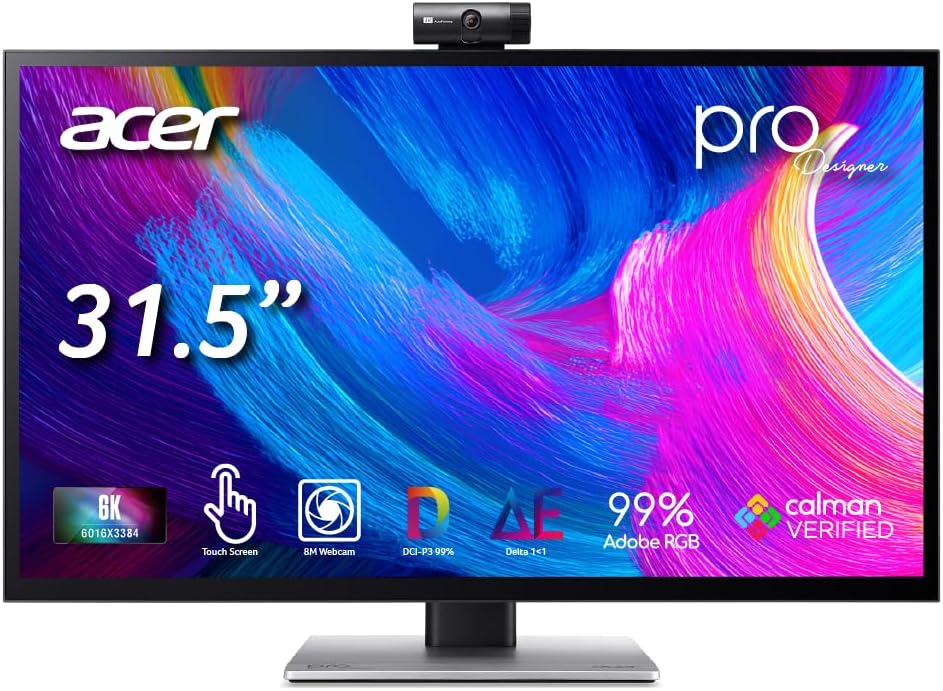
Acer ProDesigner PE320QXT
4.6Editor score
31.5 Inch 6K Touch Display
MPP 2.0 Stylus Support
99% DCI-P3 Gamut
Choosing the right monitor for Adobe Illustrator is essential for creative professionals who demand precision. The perfect display ensures your colors match print outputs and your vector edges remain sharp during intricate design work.
We evaluated ten top-tier monitors focusing on color gamut coverage, resolution clarity, and ergonomic features. Each product was selected to support demanding creative workflows across Mac and Windows environments.
Each pick highlights unique strengths like touch capabilities or high refresh rates. Prices fluctuate frequently so verify current deals before purchasing to ensure you get the best value for your creative investment.
4.6Editor score
4.2Editor score

5.0Editor score
As an Amazon Associate we earn from qualifying purchases.
The following table compares all ten selected monitors side by side. Review key specifications like resolution, color gamut, and connectivity options to find the model that aligns with your design needs.



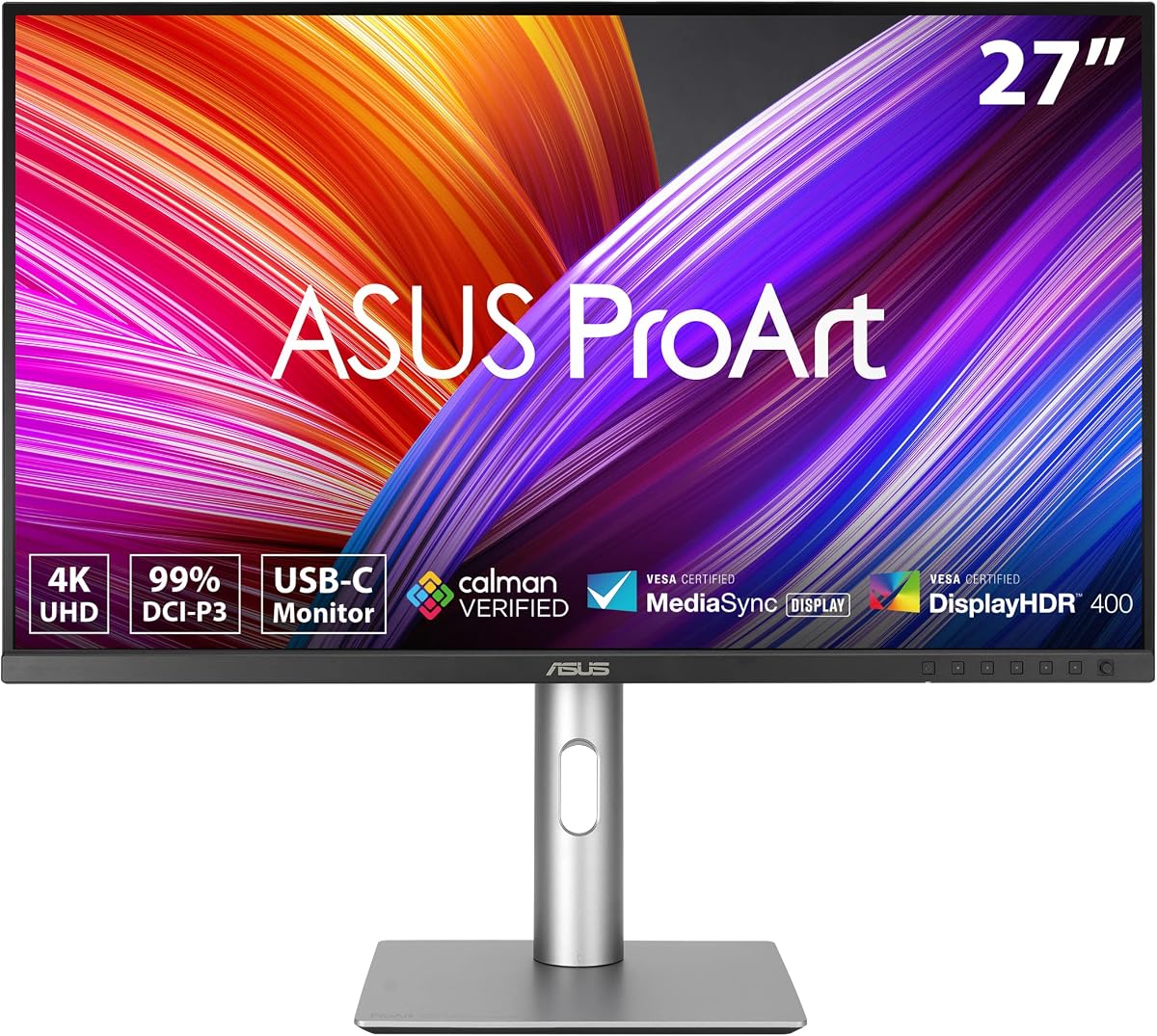
The ASUS ProArt PA279CRV stands out as the premier choice for digital illustrators seeking high-fidelity color reproduction. Its 27-inch 4K resolution ensures that every path and anchor point remains crisp even when zooming in on complex artwork. The factory calibration delivers Delta E less than two accuracy which is critical for print-ready designs.
We may earn a commission when you buy through this link, at no additional cost to you.
This monitor covers 99 percent of both the RGB and DCI-P3 spaces ensuring your on-screen colors match physical prints and digital displays. The 96-watt power delivery via USB-C simplifies laptop setups by reducing cable clutter. Additionally the included three-month subscription to Adobe Creative Cloud adds significant value for new users setting up their studio.
While the HDR performance is adequate for general viewing it does not reach the peak brightness needed for professional HDR mastering. The ergonomic stand is robust but may exhibit slight movement on larger desks. These minor drawbacks do not overshadow the exceptional color consistency that professionals require for daily illustrative work.
Ideal for graphic designers and illustrators who prioritize color fidelity over gaming performance this model offers a balanced feature set. The extensive connectivity options support multi-device workflows while the five-year warranty provides long-term peace of mind. It represents a reliable investment for any serious creative workspace.
The factory pre-calibration ensures that what you see on screen matches your printer output with high precision reducing the need for manual adjustments.
USB-C DisplayPort and HDMI ports allow you to connect multiple devices seamlessly making it easy to switch between a desktop and laptop setup.
We may earn a commission when you buy through this link, at no additional cost to you.
The Acer ProDesigner PE320QXT redefines the creative monitor experience with its stunning 6K resolution and integrated touch capabilities. This display eliminates the need for a separate drawing tablet allowing artists to sketch directly on the screen. The Quantum Dot IPS panel delivers vibrant colors and deep blacks that are essential for modern digital illustration.
We may earn a commission when you buy through this link, at no additional cost to you.
Its 31.5-inch screen provides ample real estate for tool palettes and reference images without sacrificing detail. The built-in 8MP webcam and microphone array facilitate clear communication during client reviews reducing the need for extra peripherals. The HDR 600 certification ensures that highlights and shadows are rendered accurately across the entire dynamic range.
Due to the high resolution this monitor demands significant graphics power which might strain older systems or integrated graphics cards. The touch functionality may require a learning curve for users accustomed to traditional mouse interfaces. These factors are manageable considerations when weighed against the transformative workflow improvements this device offers.
This model is perfect for illustrators who want an all-in-one creative station without external peripherals. The ability to zoom and pan with pinch gestures streamlines navigation while the high pixel count ensures intricate details are visible. It is a premium choice for those looking to upgrade their artistic toolkit significantly.
Touch functionality allows you to interact with your artwork directly making zooming and scrolling intuitive and natural for digital painters and designers.
The built-in webcam and microphone simplify remote meetings and client approvals so you can stay focused on creation without switching devices.
We may earn a commission when you buy through this link, at no additional cost to you.
The Acer ProDesigner PE270K L1 delivers professional-grade color accuracy at a highly accessible price point. Factory calibrated to a Delta E less than one it offers color precision that rivals much more expensive displays. This level of accuracy ensures that your illustrations are consistent across different screens and print media.
We may earn a commission when you buy through this link, at no additional cost to you.
The Smart Dial feature allows you to adjust brightness and color space without navigating through complex on-screen menus. This convenience saves time during daily workflows when switching between sRGB and Adobe RGB modes. The built-in KVM switch lets you control two computers with a single keyboard and mouse further streamlining your workspace.
While the panel offers excellent color reproduction it is not designed for high-brightness HDR content which limits its utility for video mastering. The stand provides standard adjustments but lacks the extensive range of motion found in premium models. These limitations are acceptable given the remarkable performance it delivers for standard creative tasks.
This monitor is an ideal choice for students or professionals who need high accuracy without breaking the bank. The combination of color precision and useful features like KVM makes it a versatile addition to any desk. It proves that top-tier color performance does not require an exorbitant investment.
This calibration level ensures the gap between displayed and true color is invisible to the naked eye providing confidence in your design work.
The KVM switch simplifies multi-system setups allowing you to toggle between machines instantly without unplugging cables.
We may earn a commission when you buy through this link, at no additional cost to you.
The BenQ PD2732U is tailored for high-end creative workflows requiring robust connectivity and precise color uniformity. Thunderbolt 4 support allows for high-speed data transfer and power delivery making it a perfect match for modern laptops. The full-panel calibration ensures that brightness and color remain consistent across the entire screen preventing uneven visuals.
We may earn a commission when you buy through this link, at no additional cost to you.
Its Mac-Ready features include M-book mode which matches the color profile of Apple devices for seamless visual consistency. The iKeyboard Control feature lets you adjust brightness and volume using your Mac keyboard adding a layer of convenience. These small touches enhance the user experience for those deeply invested in the Apple ecosystem.
The high price point may be prohibitive for freelancers or smaller studios looking for value. While color accuracy is excellent the brightness levels are standard which might limit outdoor or high-light usage. These trade-offs are balanced by the unique connectivity and calibration features that support professional demands.
Ideal for designers who need reliable Thunderbolt connections and strict color consistency this monitor is a strong contender. It supports complex workflows involving multiple high-resolution displays and high-speed storage. It is a premium tool built for users who demand reliability and precision.
Thunderbolt 4 allows for daisy-chaining multiple 4K displays and fast data transfer ensuring your workflow remains uninterrupted by connectivity bottlenecks.
Features like M-book mode ensure your monitor matches your Mac's display settings reducing color mismatch when switching between devices.
We may earn a commission when you buy through this link, at no additional cost to you.
While marketed for gaming the ASUS ROG XG27AQDMGR offers OLED technology that delivers stunning color vibrancy for illustrators. The infinite contrast ratio makes vector paths pop against dark backgrounds providing a visually immersive experience. The glossy panel enhances color depth making images appear more vivid than standard matte screens.
We may earn a commission when you buy through this link, at no additional cost to you.
The OLED Care Pro technology actively mitigates burn-in risks by using sensors to detect inactivity and adjust brightness automatically. This feature is crucial for static tool palettes that remain on screen for long periods. The 240Hz refresh rate ensures that any motion or animation in your workflow is smooth and artifact-free.
The resolution is QHD rather than 4K which may be a limitation for those needing extreme detail in fine illustrations. There is still a theoretical risk of image retention despite protective features so users must remain vigilant. These considerations should be weighed against the superior visual quality the panel provides.
This monitor is best for illustrators who prioritize color vibrancy and contrast over pixel density. It is particularly useful for digital painters and concept artists who work with dynamic lighting. For those willing to manage the risks this screen offers a breathtaking visual upgrade.
OLED technology provides perfect blacks and high saturation making your illustrations appear lively and engaging on the screen.
The ultra-fast response time ensures that animations and cursor movements are fluid and free from ghosting.
We may earn a commission when you buy through this link, at no additional cost to you.
The ASUS PA279CRV-P is a variant of the ProArt series designed to meet strict compliance standards for government and enterprise buyers. It retains the high performance of its counterpart including the 4K resolution and wide color gamut coverage. The TAA compliance ensures it meets procurement requirements without sacrificing visual quality.
We may earn a commission when you buy through this link, at no additional cost to you.
Its factory calibration guarantees Delta E less than two accuracy which is sufficient for professional illustrative work. The USB-C connectivity supports power delivery and video output simplifying cable management for MacBook users. Like other ProArt models it includes a complimentary Adobe Creative Cloud subscription adding extra value to the purchase.
The price may be slightly higher due to compliance certifications which could matter to budget-conscious consumers. Features are identical to the standard model so personal buyers should compare options before purchasing. However for regulated environments this is the preferred choice for its adherence to standards.
Ideal for corporate design teams or government contractors this monitor offers reliability and compliance. It delivers the same high visual standards as consumer models while meeting specific regulatory needs. It is a secure choice for organizations with strict procurement policies.
TAA compliance ensures the product meets US federal procurement requirements making it suitable for government projects.
The USB-C connectivity ensures seamless integration with Apple hardware allowing for a clean and efficient workspace.
We may earn a commission when you buy through this link, at no additional cost to you.
The ASUS ProArt PA27JCV offers a high-resolution 5K display that provides exceptional clarity for detailed design work. The 5120 by 2880 resolution ensures that even the smallest strokes are visible without zooming. This level of detail is beneficial for illustrators working on complex vector art or typography.
We may earn a commission when you buy through this link, at no additional cost to you.
Ambient light sensors automatically adjust brightness and color temperature to match room lighting reducing eye strain during long sessions. The auto KVM feature allows you to switch between connected devices easily using a single keyboard and mouse. These features enhance comfort and efficiency in a multi-device workspace.
While the resolution is impressive the Adobe RGB coverage is 95 percent which is lower than competitors. The rating of 3.6 suggests some users may have encountered issues or have unmet expectations. These factors are important to consider if color accuracy is your primary requirement.
This monitor is suitable for those who prioritize pixel density over maximum color gamut coverage. It is a strong option for typographers or vector artists who need sharp rendering of lines. For general illustration it offers good performance but requires careful color management.
The 5K resolution provides a high pixel density ensuring that text and lines appear crisp and smooth at all zoom levels.
Switching between computers is effortless as the monitor detects active signals and switches inputs automatically.
We may earn a commission when you buy through this link, at no additional cost to you.
The Samsung Odyssey OLED G6 combines Quantum Dot technology with OLED for vivid and accurate colors. The Pantone Validated screen ensures that colors are lifelike and suitable for professional design tasks. Its glare-free technology reduces reflections from ambient light maintaining visibility in bright environments.
We may earn a commission when you buy through this link, at no additional cost to you.
With a 240Hz refresh rate and fast response time this monitor handles motion smoothly which is useful for interactive design tools. The thermal modulation system helps prevent burn-in by adjusting pixel usage dynamically. These features make it a robust choice for users who need reliability and visual depth.
Being primarily a gaming monitor some features may not directly benefit static illustration work. The resolution is QHD which is adequate but not as sharp as 4K or 5K panels. These factors suggest it is better suited for multimedia creation than detailed vector art.
This monitor is best for artists who work with motion graphics or dynamic media. It offers a visually rich experience that enhances the creative process. For pure illustration a dedicated professional monitor might be more optimized.
This validation ensures that the screen reproduces colors consistently with Pantone standards for reliable color matching.
The glare-free coating minimizes reflections helping you see your design clearly even under strong room lighting.
We may earn a commission when you buy through this link, at no additional cost to you.
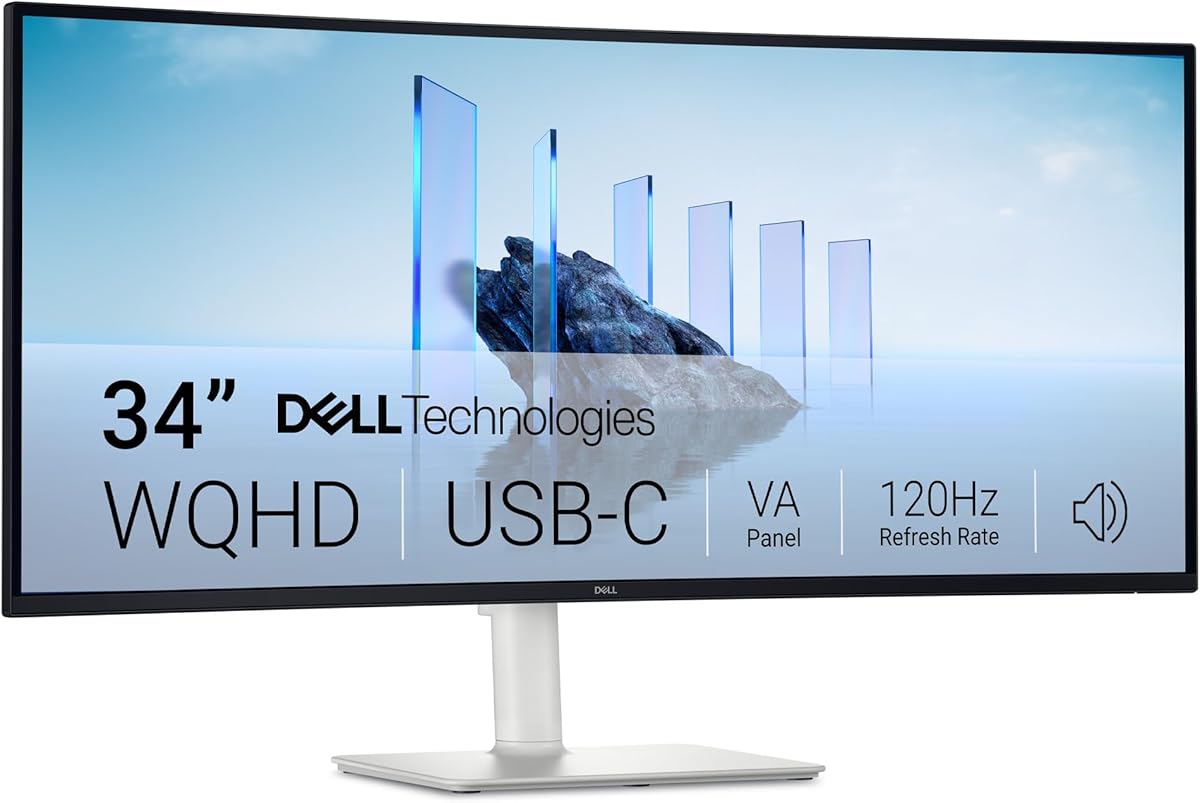
The Dell 34 Monitor S3425DW provides an ultrawide format that offers extra horizontal space for toolbars and reference images. This layout allows you to keep your workspace organized without overlapping windows. The VA panel delivers a high contrast ratio which ensures dark elements stand out clearly against the background.
We may earn a commission when you buy through this link, at no additional cost to you.
Its USB-C port supports up to 65 watts of power delivery allowing you to charge a laptop while working. The Eye Comfort certification helps reduce blue light exposure which can cause fatigue during long design sessions. These ergonomic features support extended use without compromising visual comfort.
The response time on VA panels is generally slower than IPS which might cause slight ghosting in fast workflows. Color coverage is limited to sRGB and DCI-P3 lacking the wide Adobe RGB gamut required for print work. These limitations make it better suited for digital design than print production.
Ideal for digital illustrators and storyboard artists this monitor maximizes horizontal real estate. It supports efficient multitasking and keeps all tools within reach. For print professionals however a wider color gamut might be a necessary requirement.
The extra width allows you to place multiple windows side by side without feeling cramped.
Built-in eye care features reduce strain keeping you comfortable during long creative marathons.
We may earn a commission when you buy through this link, at no additional cost to you.
The Dell 24 Plus Monitor offers a budget-friendly entry point for illustrators starting their creative careers. Its adjustable stand supports height and pivot adjustments allowing for ergonomic positioning during long work sessions. The fast response time ensures smooth movement of digital brushes and tools across the canvas.
We may earn a commission when you buy through this link, at no additional cost to you.
Integrated speakers allow for basic audio playback which can be useful for multimedia design projects. The compact size is ideal for smaller desks where space is at a premium. This makes it a practical choice for students or those working in shared environments.
The resolution is Full HD which may result in less detail for intricate vector illustrations. Color accuracy is standard and not calibrated for professional printing needs. These factors limit its suitability for high-end professional work but not for learning or personal projects.
This monitor is best for beginners or those needing a secondary display for general tasks. It provides essential ergonomic features without a high cost. For serious professional work upgrading to a 4K option is recommended.
The compact footprint leaves room for your keyboard and other essential tools on the desk.
Full adjustability ensures you can find a comfortable viewing angle for any seated position.
We may earn a commission when you buy through this link, at no additional cost to you.
Selecting the right monitor requires understanding how resolution and color accuracy impact your design work.
Resolution determines how sharp your lines and typography appear on the screen. A 4K monitor is generally recommended for Illustrator to ensure intricate details are visible without zooming. Higher pixel density reduces pixelation making vector artwork look smoother and more polished.
Always choose a resolution that matches your screen size to maintain optimal sharpness.
Color accuracy is vital for ensuring your digital designs translate correctly to print and web. Look for monitors covering at least 99 percent of the Adobe RGB or DCI-P3 color spaces for professional work. Factory calibration with Delta E values under two ensures the colors you see are true to life.
Prioritize monitors with wide gamut coverage if your work involves print or professional web design.
IPS panels are preferred for their consistent color and wide viewing angles making them ideal for creative work. OLED panels offer perfect blacks and high contrast which may be useful for digital painting or motion graphics. TN and VA panels usually have color limitations that may not suit professional design needs.
Select an IPS panel for balanced performance or OLED for high contrast scenarios.
Modern monitors should offer USB-C with power delivery to simplify connections with laptops. DisplayPort and HDMI ensure compatibility with desktop systems and external graphics cards. Daisy-chain support allows you to connect multiple screens through a single output for a streamlined setup.
Verify your device has the necessary ports to support the connectivity options you need.
A comfortable workspace is essential for long design sessions. Look for stands that support height tilt swivel and pivot adjustments to reduce physical strain. VESA mounting compatibility allows you to use third-party arms if the stand is unsuitable.
Ensure the monitor can be adjusted to fit your desk and viewing habits comfortably.
Some monitors include touch and stylus support to offer a more natural drawing experience. This is beneficial for illustrators who prefer sketching directly on the screen. Check if the included stylus supports pressure sensitivity for natural brush strokes.
Consider touch features if you want to replace a separate drawing tablet.
HDR capabilities are useful if you work with high dynamic range content for video or photography. Look for VESA DisplayHDR certifications to ensure the panel meets brightness and contrast standards. Not all creative workflows require HDR so evaluate this based on your specific needs.
Ensure HDR specs meet professional standards if you work with cinematic content.
A solid warranty protects your investment against defects and failures. Many professional monitors offer extended warranties covering up to five years for better peace of mind. Check if the brand provides dedicated support for creative workflows or calibration issues.
Prioritize brands with strong support and long-term warranty coverage.
Set up your monitor at eye level to reduce neck strain and ensure your viewing distance is about two to three feet for optimal clarity. Use the ergonomic adjustments to align the screen comfortably with your seated posture.
Calibrate your display regularly using software tools to maintain color accuracy over time. Check the monitor's factory reports periodically to ensure performance remains consistent with original specifications.
Protect your panel by using built-in anti-burn-in features and avoiding static images for prolonged periods. Clean the screen gently with a microfiber cloth to remove dust without damaging the surface.
Color accuracy ensures that the colors you design on screen match physical prints or digital outputs. Without it your designs may look different across devices leading to client issues.
4K resolution is recommended for detailed vector work as it provides sharper lines and better typography. Lower resolutions may appear blurry when zooming in on complex illustrations.
Adobe RGB covers a wider range of colors used in print production. High coverage ensures your designs will match the output of professional printing presses.
Yes touch screens allow you to zoom and sketch directly on the canvas for a more intuitive workflow. However they require compatible styluses for detailed control.
USB-C is ideal because it handles video data and power delivery through a single cable. This keeps your workspace tidy and simplifies setup.
Monthly calibration is recommended to maintain consistent color performance. Professional workflows often require more frequent checks to ensure accuracy.
The ASUS ProArt PA279CRV leads our list with its balanced performance and reliable color accuracy. It serves as a strong benchmark for professionals looking for high-quality results.
Prioritize features like color gamut and resolution based on your specific needs. Print designers should focus on Adobe RGB coverage while digital artists might prefer higher refresh rates.
Prices fluctuate regularly so check current offers before making your final purchase decision. Investing in the right display ensures your creative process remains smooth and accurate.